$ less ~/blog/hand-picked-content-top-chronologically-sorted-view-option-1-make-it-sticky.txt
-rw-r--r-- ana Nov 10 2021 hand-picked-content-top-chronologically-sorted-view-option-1-make-it-sticky.txt
ARCHIVED · written in 2021. Kept as it was; some of it may be out of date.
Hand-picked content at the top of a chronologically sorted view: Option 1, make it Sticky!

Every time that I have to implement a list of articles, sort them by created date and also allow our content editors to override that order by selecting which articles go at the top of the list I need to sit back and think for a minute about the best implementation for that particular case. I realized today, discussing this with my coworker and friend Uriel, that I’ve done this differently many times. That doesn’t mean all but one implementations were wrong. Some implementations had advantages over the others for each special case.
Without further ado, we came up with this one way or another series (I hope the song gets stuck into your heads as well), to approach common issues and solve them in different ways, weighing their pros and cons, and showing quick tutorials on each approach.
Today is the turn of the checkbox Sticky!
“Sticky at top of lists” is a checkbox on the promotion options of your content edit page. It’s easy to set up and It is a good option, when for example a content manager wants to display one article (or any content type of their choice) in a special page and have the option to override it and showcase one hand-picked node at times.
Here’s how it’s done: I’ll start by creating a view that displays one article:
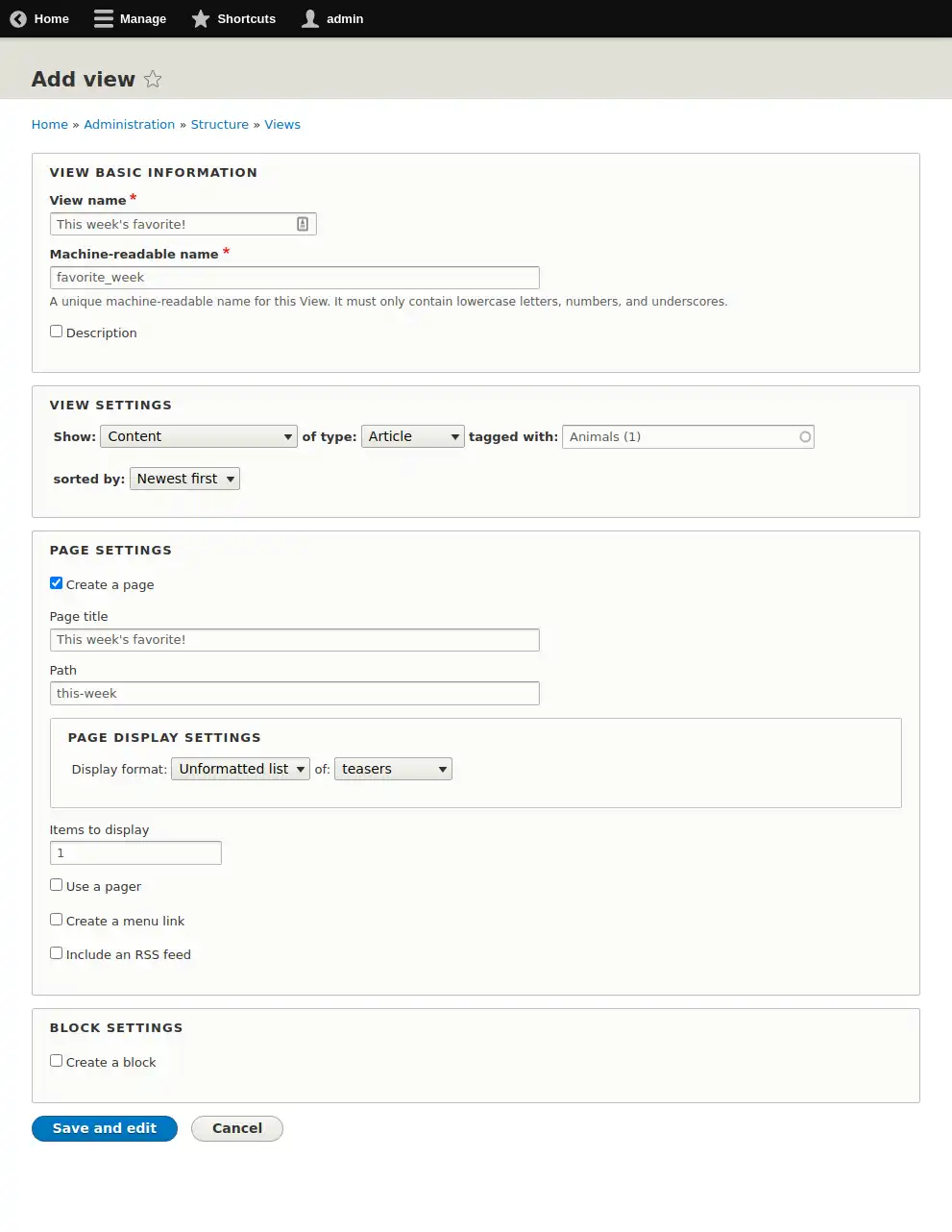
You’ll notice that I also added a filter by term “animals”. This is because I created a few simple articles to test the view with that term. Nothing special.
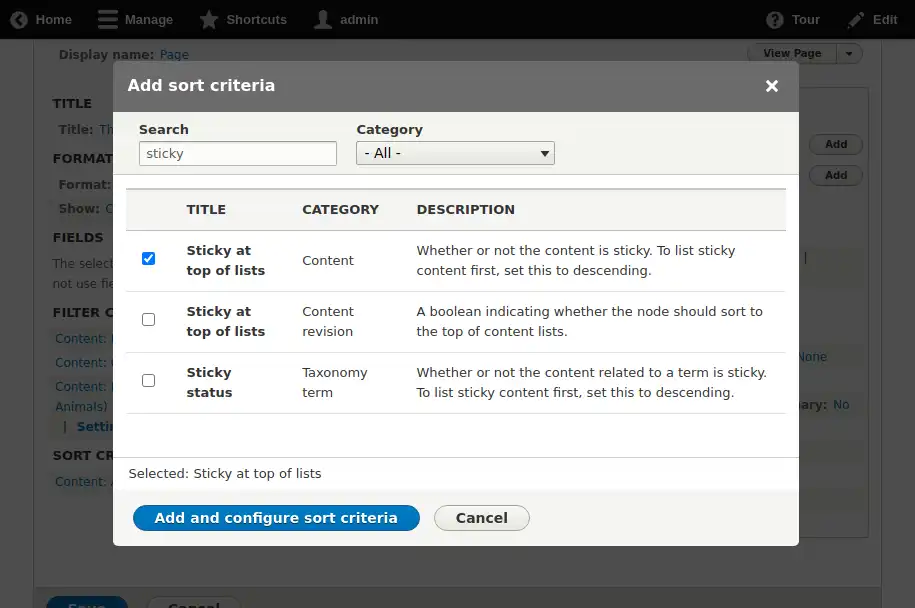
Back to the view: we want to prioritize the contents marked as sticky, so we’ll add a “Sticky at top of lists” sort criteria to our view, and set it to descending order:
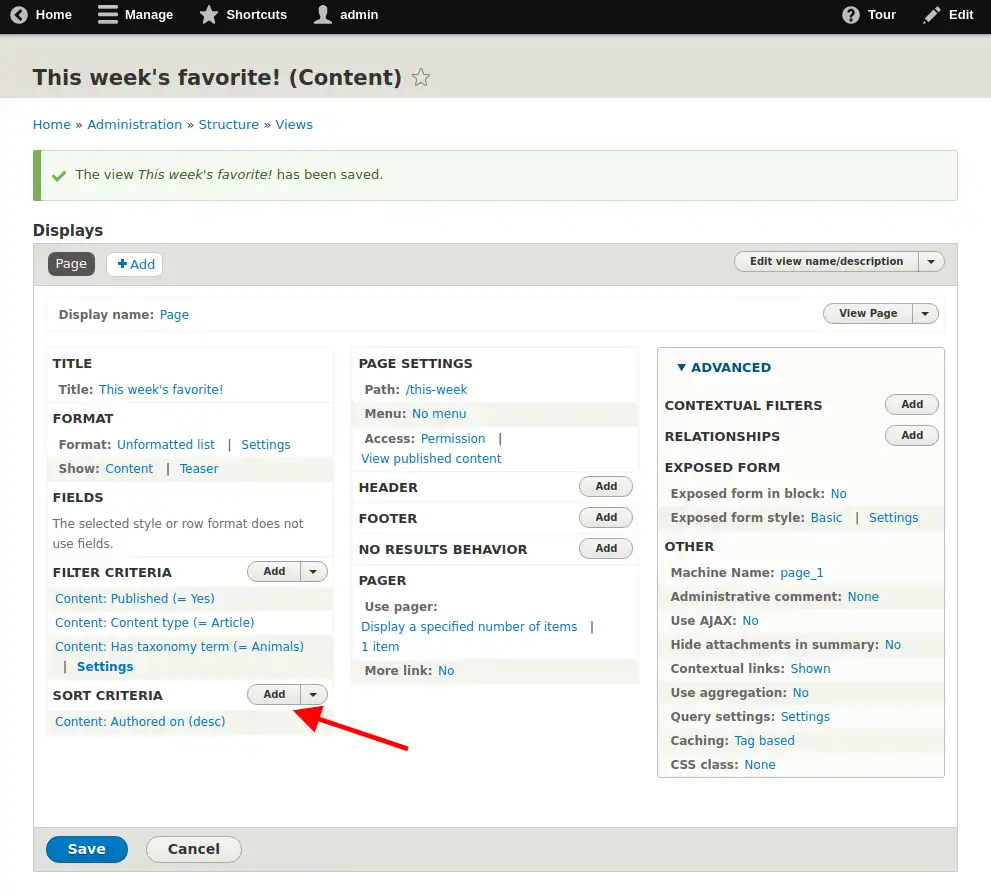
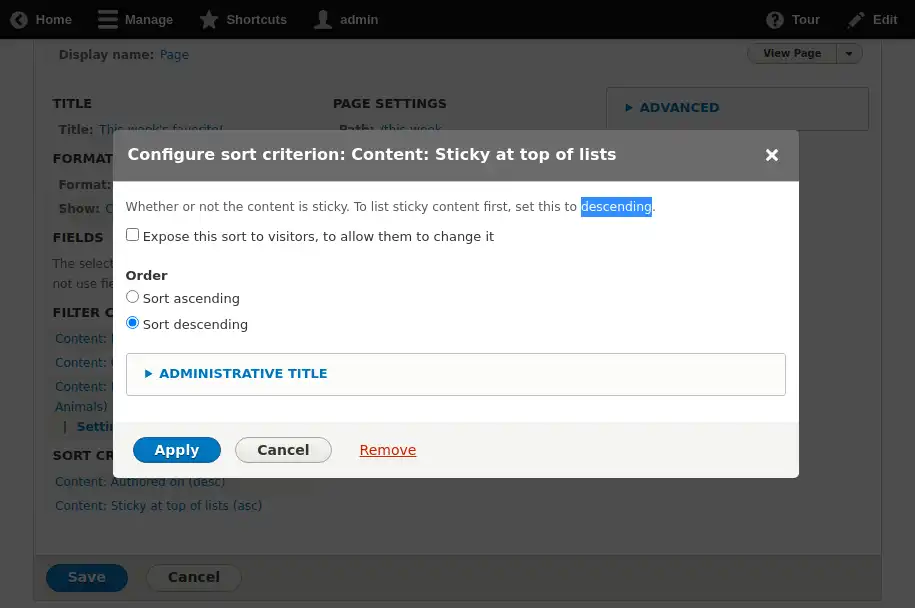
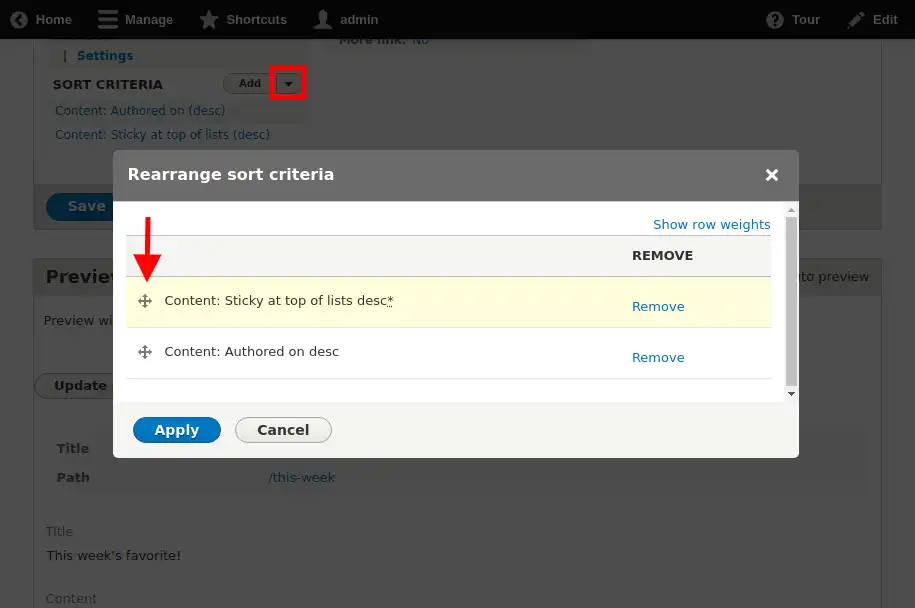
After that, we need to rearrange the sort criteria. Do not forget this step! It’s crucial to this feature, that the Sticky sort criteria gets applied before the rest of the criteria. This is done by clicking on the little arrow next to “Add” and clicking on “Rearrange”.
What this does, is that the view will first sort by Sticky (has sticky first, doesn’t have sticky next), and if there is a tie (more than one article has the Sticky checkbox on), it will sort those tied articles by “Authored on” date.
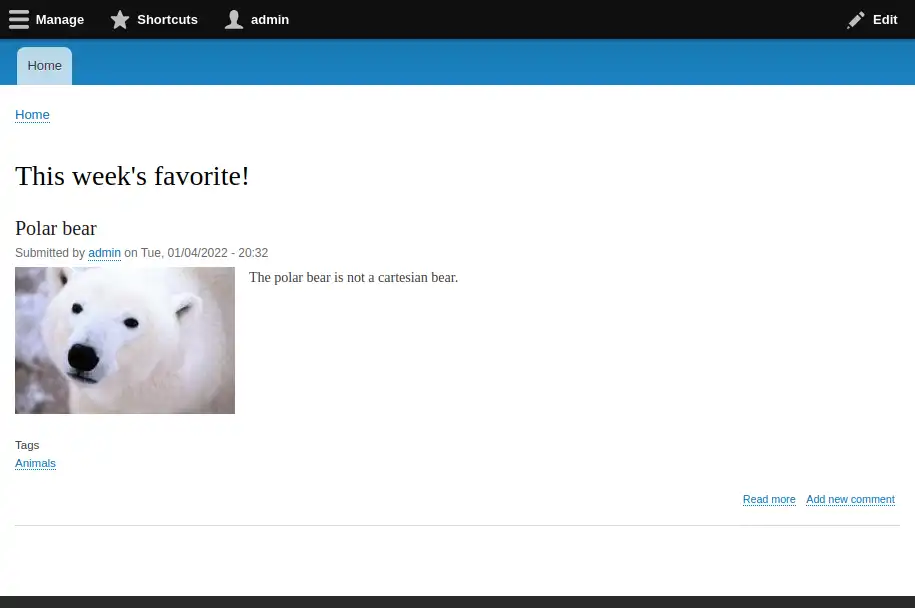
Now the view is finished. To test this, I have two Articles with pictures of animals in them (and tagged them with the Animals term). The first (and therefore oldest) article has a bunny, and the newest has an elephant. None of the articles is marked sticky yet.
The first result of the page is The polar bear, since it’s the newest content.
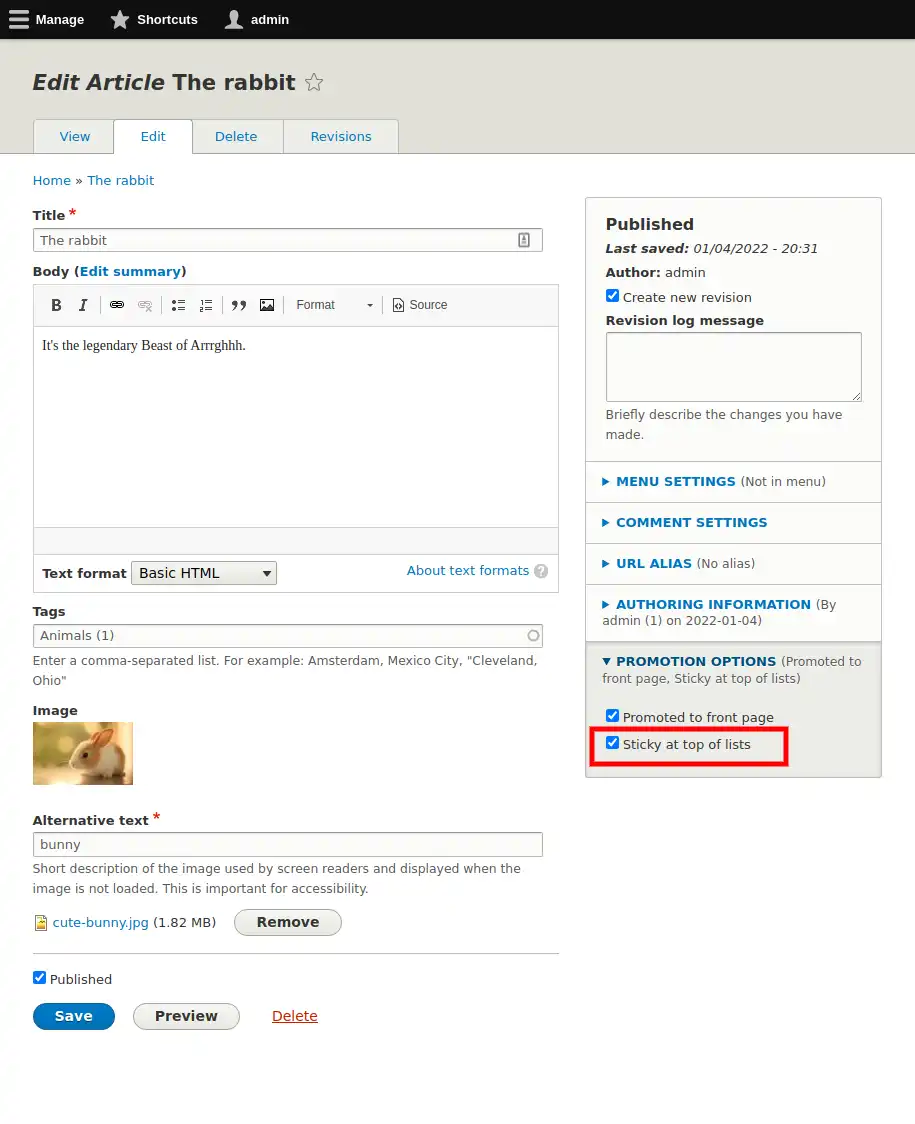
Then I edited another article, The rabbit, and marked it as sticky on the promotion options. Notice that, to be able to access the promotion options, an admin has to allow it on the content type first at Structure > Content types > Article (or your content type) > Edit.
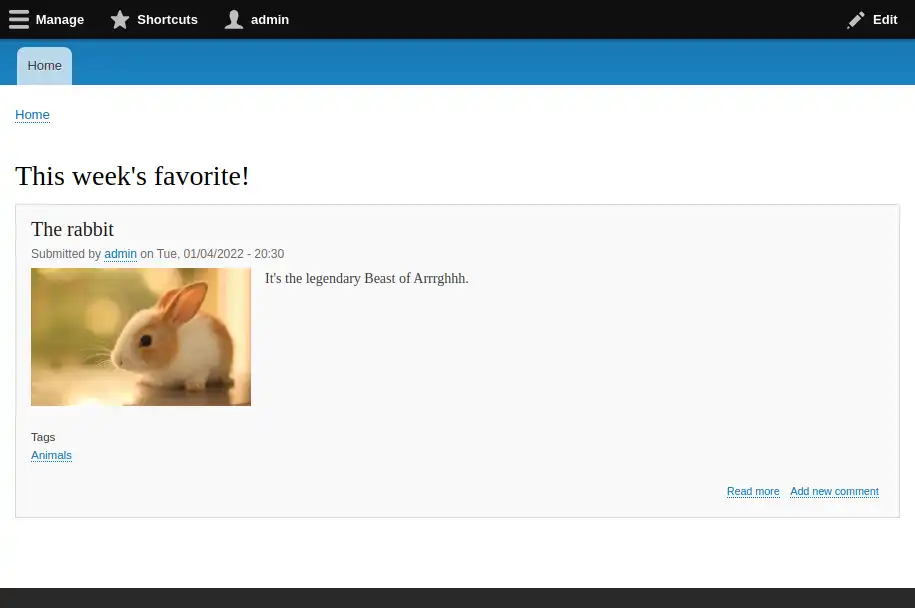
The view gets updated, and displays the rabbit instead of the elephant, because the rabbit is marked sticky!
Summing up, sticky is a great feature, because:
- it comes along with the Drupal core (there’s no need to install anything new). It’s a nice checkbox in the sidebar of your content edition page. That’s it.
- It’s also very easy to integrate with views (I’ll show you later).
But nothing is perfect, and this also has some cons:
- Using a checkbox doesn’t provide any way for the user to specify the order of the elements, and also,
- once you mark many contents as sticky, It gets harder to remember or even figure out which ones you marked: it’s messy. In the worst case scenario, your content editor might end up having to edit them all again in the quest of “the lost content with the sticky checkbox”. One way to help your content editors out is to create an administration view where you can show them which contents are sticky at one glance. They will appreciate it very much.
Hope this is useful to you all. Next, we’ll implement this feature with entity queues! Stay tuned!