$ less ~/blog/pantheon-discord-webhook-integration.txt
-rw-r--r-- lucas Sep 11 2022 pantheon-discord-webhook-integration.txt
ARCHIVED · written in 2022. Kept as it was; some of it may be out of date.
Pantheon Discord Webhook Integration
As part of the tools we use at easytechgreen as part of development workflow are Discord and Pantheon.io.
Something important in our development process is that the whole team be aware when deployments are carried out in the different environments. This is why we needed to make an integration between the two things so that when we deploy in Pantheon a notification should be sent to a particular Discord channel.
Luckily this is quite easy to do using:
- Webhook on Disctord
- And Pantheon Quicksilver.
Creatimg a Webhook
Setting up the webhook to be use to send notification is an easy task. We just need to go through the following steps:
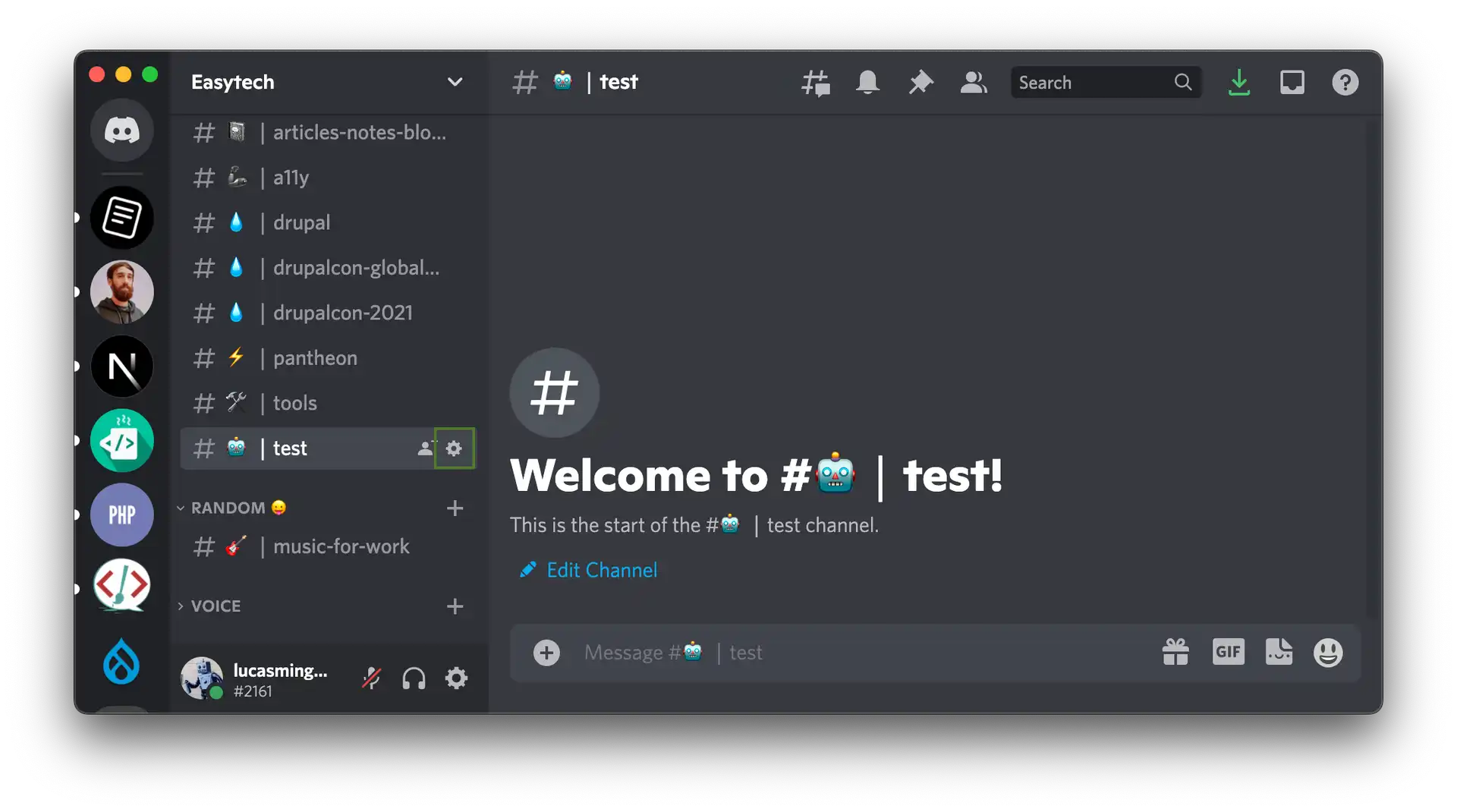
Step 1 Edit the Channel
Open the channel Settings and head into the Integrations tab
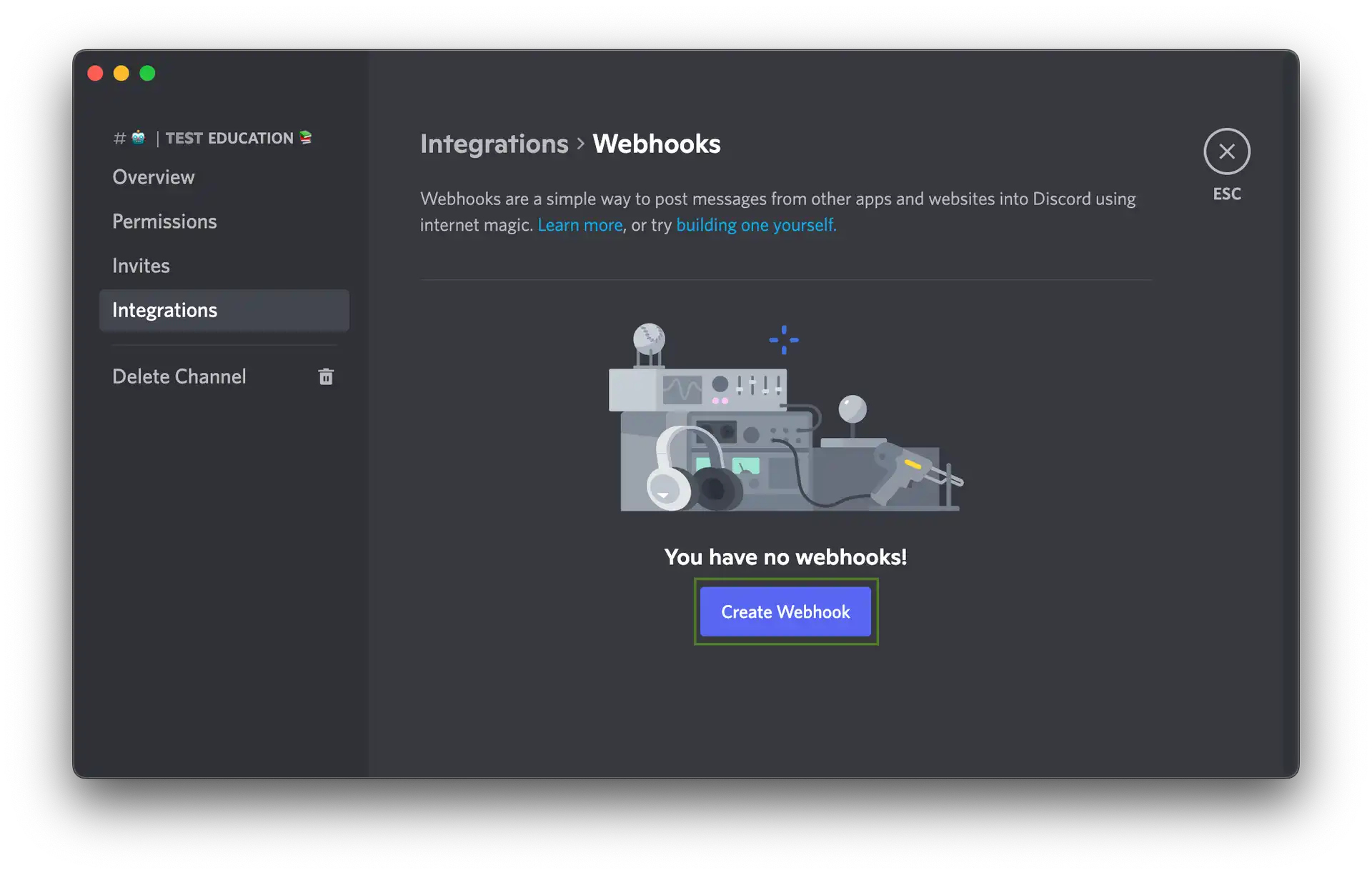
Step 2 Create the Webhook
Click the “Create Webhook” button to create a new webhook!
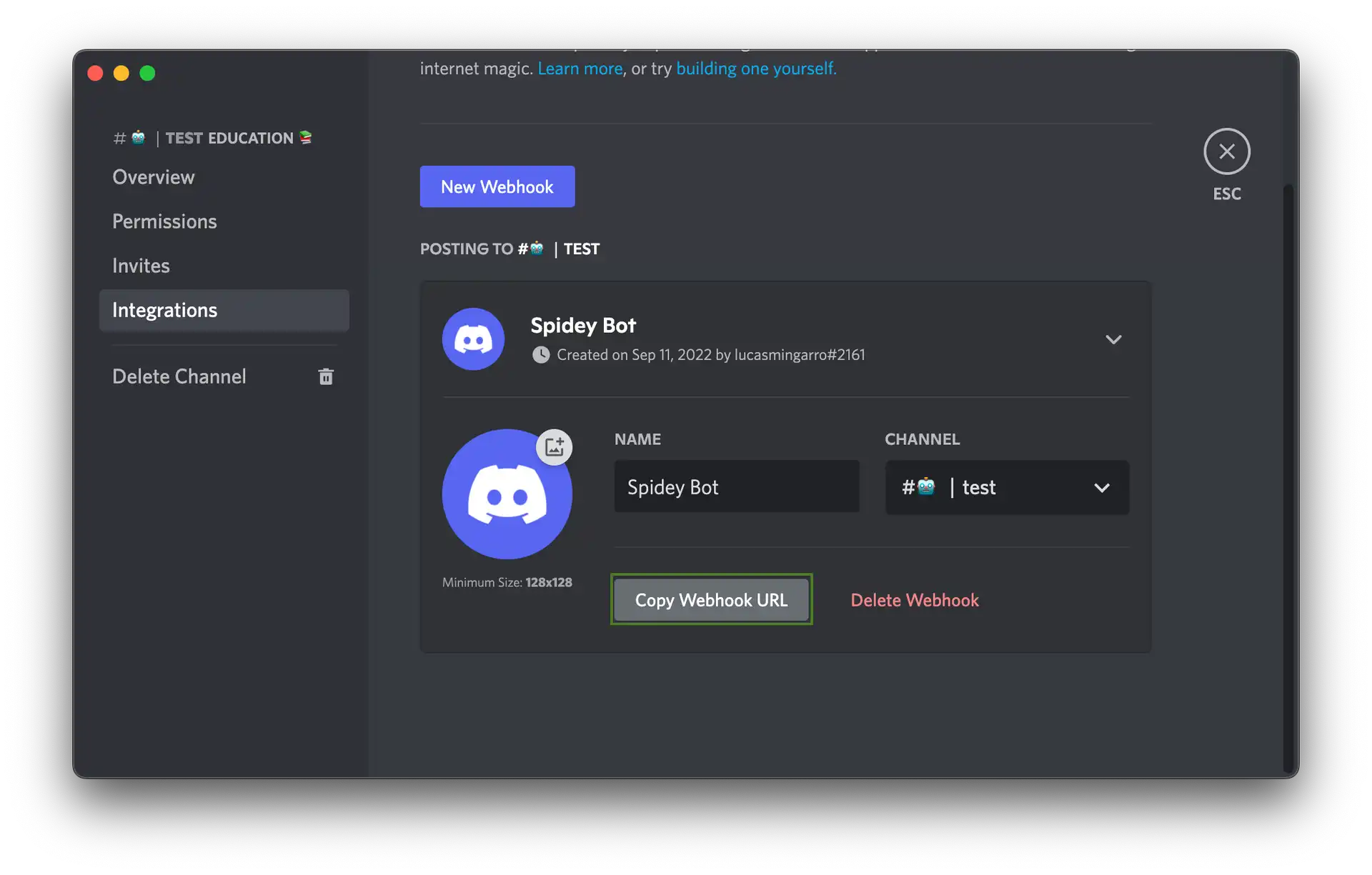
We’ll have a few options here. You can:
- Edit the avatar: By clicking the avatar next to the Name in the top left
- Choose what channel the Webhook posts to: By selecting the desired text channel in the dropdown menu.
- Name your Webhook: Good for distinguishing multiple webhooks for multiple different services.
We now have our own handy URL that we are going to use to receive messages from pantheon.
Quicksilver Side
Quicksilver hooks into platform workflows to automate your Pantheon WebOps workflow. This allows the platform to run selected scripts automatically every hour, or when a team member triggers the corresponding workflow.
You can read the Quicksilver doc and then check a look to some scripts examples on the pantheon git repository that you can use to chat-ops, database sanitization, deployment logging, and automated testing operations with a CI serve.
Deploy and Code Sync Hook
Our script will hook the deploy and the code_sync Quicksilver workflow into the stage after. So to trigger it execution, we need to add into pantheon.yml the following lines.
workflows:
	sync_code:
    after:
      - type: webphp
        description: Post deployment notification to Discord
        script: private/scripts/discord_notification.php
  deploy:
    after:
      - type: webphp
        description: Post deployment notification to Discord
        script: private/scripts/discord_notification.php
If you are not using Quicksilver yet just deploy your pantheon.yml file into an environment.
Script
Quicksilver support webphp scripting which runs through the same runtime environment as the website. So we develop the following script and put it in web/private/scripts
<?php

// Important constants :)
$pantheon_yellow = 'EFD01B';
$botname = 'Pantheon';
$avatar_url = "https://images.g2crowd.com/uploads/product/image/large_detail/large_detail_4e32e9799b7e0d8bb92c633229b79463/pantheon.png";

$timestamp = date("c", strtotime("now"));

// Create new webhook in your Discord channel settings and copy&paste URL
$url = '<Discord Webhook Url'>;

// Pantheon
$wf_type = $_POST['wf_type'];

// Compose message.
// Message Formatting -- https://discordapp.com/developers/docs/reference#message-formatting
switch ($wf_type) {
  case 'deploy':
    // Find out what tag we are on and get the annotation.
    $deploy_tag = `git describe --tags`;
    $deploy_message = $_POST['deploy_message'];

    // Title
    $title = 'Deploy to ' . $_ENV['PANTHEON_ENVIRONMENT'];
    $title_url = 'https://dashboard.pantheon.io/sites/' . PANTHEON_SITE . '#' . PANTHEON_ENVIRONMENT . '/deploys';

    // Prepare the slack payload as per:
    $text = 'Deploy to  ' . $_ENV['PANTHEON_ENVIRONMENT'];
    $text .= ' environment of ' . $_ENV['PANTHEON_SITE_NAME'] .' by ' . $_POST['user_email'] .' complete!';
    // Build an array of fields to be rendered with Slack Attachments as a table
    // attachment-style formatting:
    // https://api.slack.com/docs/attachments
    $fields = [
      [
        'name' => 'Deploy Note',
        'value' => $deploy_message,
        'inline' => 'false'
      ]
    ];
    break;

  case ($wf_type == 'sync_code' || $wf_type == 'sync_code_with_build'):
    // Get the committer, hash, and message for the most recent commit.
    $committer = `git log -1 --pretty=%cn`;
    $email = `git log -1 --pretty=%ce`;
    $message = `git log -1 --pretty=%B`;
    $hash = `git log -1 --pretty=%h`;

    $title = 'Code Sync to ' . $_ENV['PANTHEON_ENVIRONMENT'];
    $title_url = 'https://dashboard.pantheon.io/sites/' . PANTHEON_SITE . '#' . PANTHEON_ENVIRONMENT . '/deploys';

    $text = 'Code sync to the ' . $_ENV['PANTHEON_ENVIRONMENT'] . ' environment of ' . $_ENV['PANTHEON_SITE_NAME'] . ' by ' . $_POST['user_email'] . "!\n";
    $fields = [
      [
        'name' => 'Commit',
        'value' => rtrim($hash) . ' by ' . rtrim($committer),
        'inline' => 'true'
      ],
      [
        'name' => 'Commit Message',
        'value' => $message,
        'inline' => 'false'
      ]
    ];
    break;

  case 'clear_cache':
    $title = 'Cleared caches on ' . $_ENV['PANTHEON_ENVIRONMENT'];
    $fields = [
      'name' => 'Cleared caches',
      'value' => 'Cleared caches on the ' . $_ENV['PANTHEON_ENVIRONMENT'] . ' environment of ' . $_ENV['PANTHEON_SITE_NAME'] . "!\n",
      'inline' => 'false'
    ];
    break;

  default:
    $title = 'Default wf on ' . $_ENV['PANTHEON_ENVIRONMENT'];
    $text = $_POST['qs_description'];
    $field="";
    break;
}

//
// Create the message  to post in discord
$message = [
  // Bot Name
  "username" => $botname,
  //  Bot avatar
  "avatar_url" => $avatar_url,

  //  Embeds Array
  "embeds" => [
    [
      "title" => $title,
      //  Url to the dashboard on pantheon
      "url" => $title_url,
      "type" => "rich",
      "description" => $text,
      "timestamp" => $timestamp,
      // Embed left border color in HEX
      "color" => hexdec($pantheon_yellow),
      "fields" => $fields,
      "footer" => [
        "text" => "easyhtechgreen",
        "icon_url" => "https://www.drupal.org/files/druplicon-small.png"
      ],
    ]
  ]

  ];

  //  Post message to discord
_discord_notification($url, $message);

/**
 * Send a notification to Discord
 */
function _discord_notification($url, $discord_message)
{
  $payload = json_encode($discord_message);
  $ch = curl_init();
  curl_setopt($ch, CURLOPT_URL, $url);
  curl_setopt($ch, CURLOPT_POST, 1);
  curl_setopt($ch, CURLOPT_RETURNTRANSFER, 1);
  curl_setopt($ch, CURLOPT_TIMEOUT, 5);
  curl_setopt($ch, CURLOPT_HTTPHEADER, array('Content-Type: application/json'));
  curl_setopt($ch, CURLOPT_POSTFIELDS, $payload);
  // Watch for messages with `terminus workflow:watch <siteid>`
  print("\n==== Posting to Discord  ====\n");
  $result = curl_exec($ch);
  print("RESULT: $result");
  // $payload_pretty = json_encode($post,JSON_PRETTY_PRINT); // Uncomment to debug JSON
  // print("JSON: $payload_pretty"); // Uncomment to Debug JSON
  print("\n===== Post Complete! =====\n");
  curl_close($ch);
}
We need to add the URL from the Webhook created in Discord to our script and we are almost ready to go.
// Create new webhook in your Discord channel settings and copy&paste URL
$url = '<Discord Webhook Url'>;
Message
To create our message we can access to some variables that are made available through the**$_POST** global variable, the $_ENV and $_SERVERobjects. You can check what this variables include at the quiclsilver documentation.
But here some of the variable we are using in our script
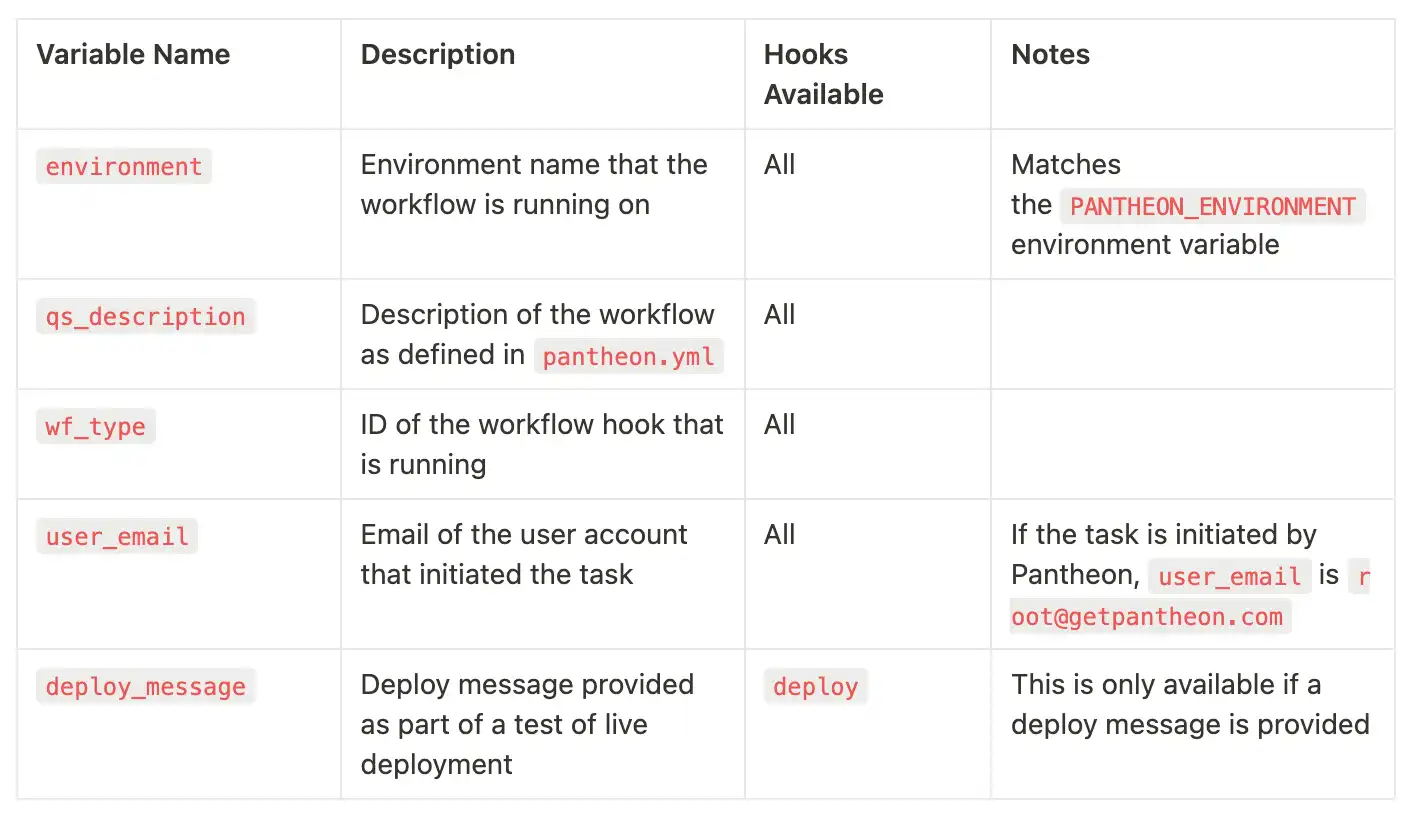
Once we have the information we need to send to Discord we need to create the message following an specific structure tha you can check at the Discord WebHook Doc
But in a nutshell, we create a message with this one structure:
username - overrides the predefined username of the webhook and we put here our botname
avatar_url - overrides the predefined avatar of the webhook
embeds - array of embed objects. In comparison with bots, webhooks can have more than one custom embed
- color - color code of the embed. You have to use Decimal numeral system, not Hexadecimal.
- title - title of embed
- url - url of embed. If title was used, it becomes hyperlink
- description - description text
- fields - array of embed field objects
- name - name of the field
- value - value of the field
- inline - if true, fields will be displayed in the same line, 3 per line, 4th+ will be moved to the next line
- footer - embed footer object
- text - footer text, doesn’t support Markdown
- icon_url - url of footer icon
- timestamp - ISO8601 timestamp (yyyy-mm-ddThh:mm:ss.msZ)
Ready to go
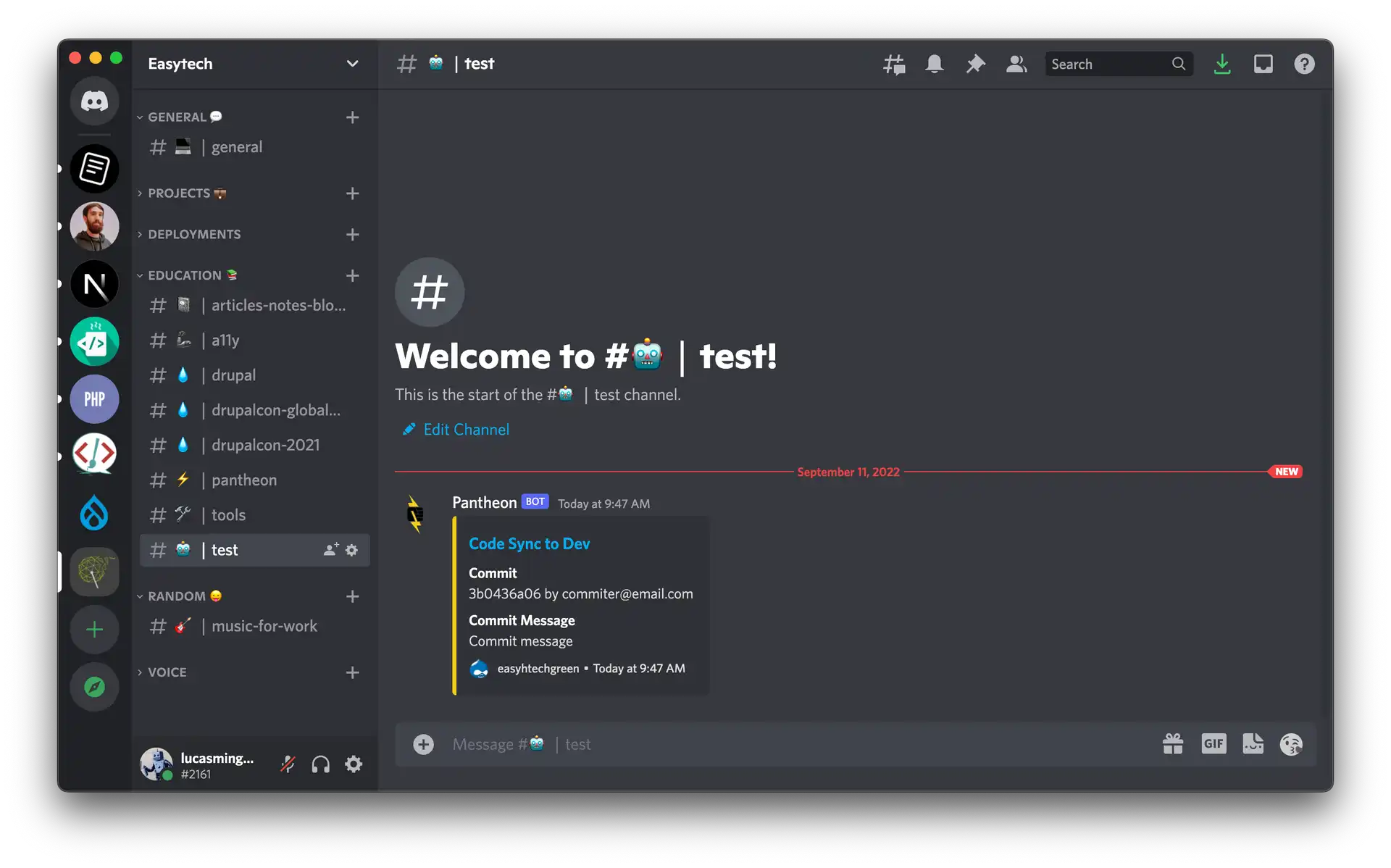
Finally, we can try our script and start to receive messages from pantheon into our discord channel. So push your code to pantheon and see what happens. :-)
Before pushing your code, you can open a new terminal and run the following command
$ terminus workflow:watch <siteid>to check if our script is working as expected.
Voilà!! We have our beautiful message in Discord 🤖****
You can download this script and other examples from [our repo](https://bitbucket.org/kurobits/quicksilver-examples/src/master/)